Updated October 2026: assessment and onboarding are now quoted per site, because what they involve depends on the site.
Consider a hypothetical repair shop in Chesterville. The computer at the front counter works, but the laptop in the workshop keeps losing its connection. Someone calls the internet provider. By the time support answers, the laptop is working again. The next afternoon, it happens twice.
Should the owner buy a faster internet package? Replace the router? Add another WiFi box?
We'd start by finding out which part of the connection is failing. When business WiFi keeps dropping, the symptom alone doesn't tell you what to buy. A few observations can help you ask for the right work instead of paying for a guess.
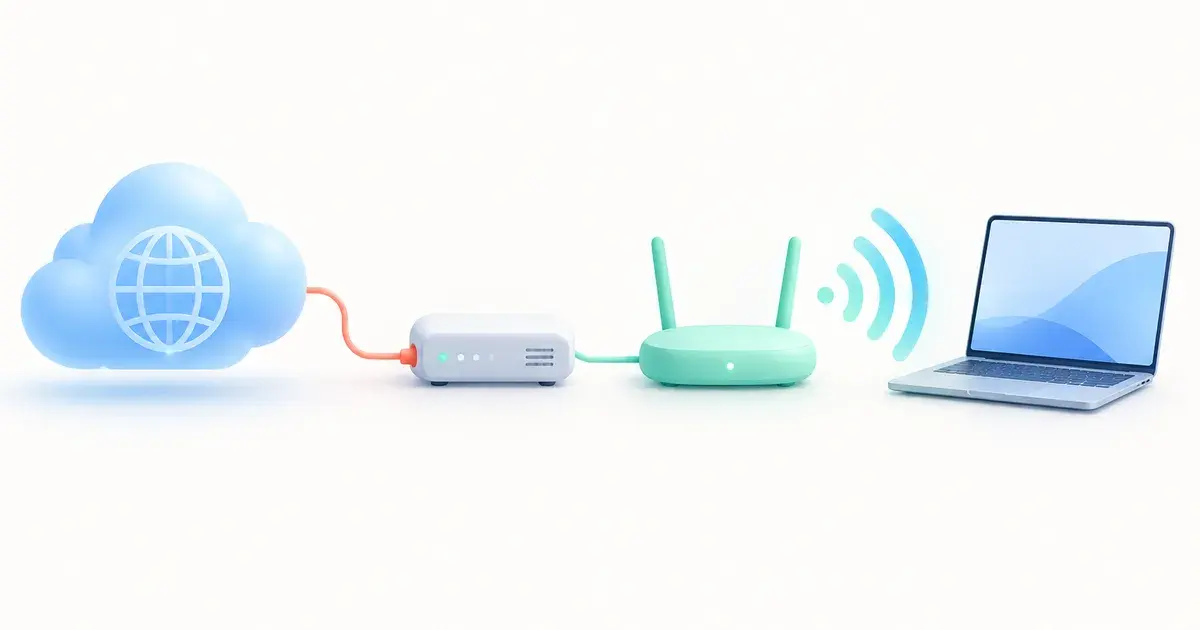
Your Internet Connection and WiFi Do Different Jobs
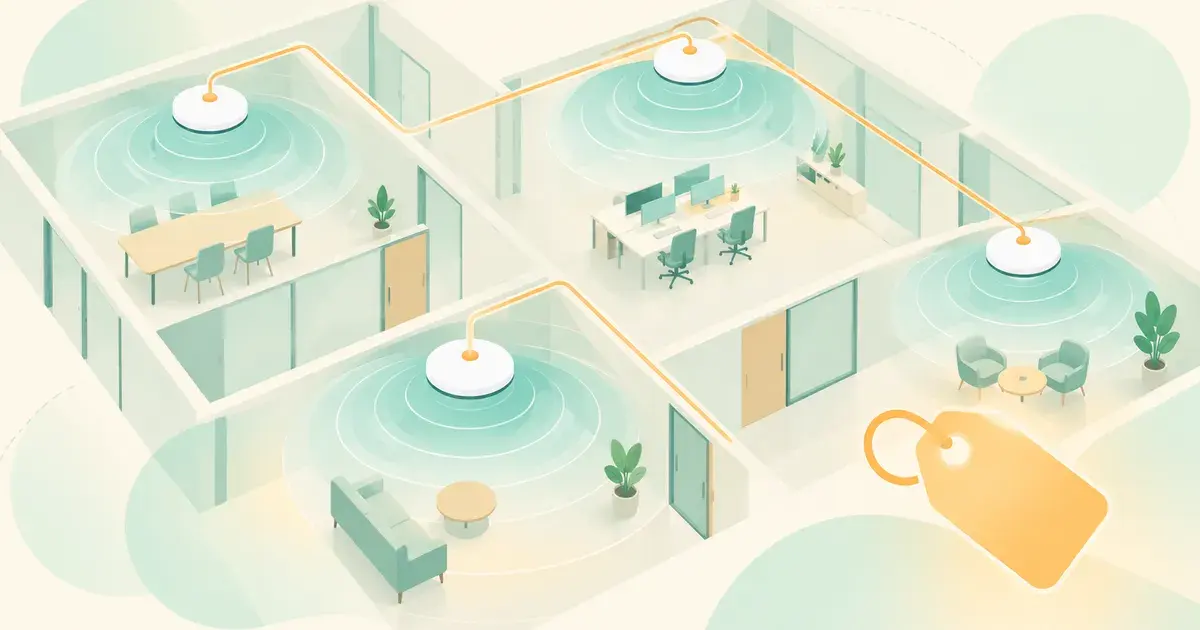
Your internet service connects the business to the outside world. WiFi is the wireless connection between a device and your local network. A router connects networks, a switch connects wired equipment, and a wireless access point gives devices a way onto the network without a cable. Some equipment combines several of those jobs in one box. Cisco's networking overview explains these roles.
That gives us different places to investigate: the provider's connection, the equipment inside the business, and the particular computer or application having trouble.
In the repair-shop example, we'd want to know whether the counter computer uses a cable or WiFi, and whether it still works at the exact moment the workshop laptop disconnects. "It worked earlier" is a less useful comparison.
Start With What Stops Working
You don't need to log into a router to collect useful information. We'd suggest making a short note when the problem occurs:
- Which devices are affected? One laptop, everyone on WiFi, or wired computers too?
- Where does it happen? At one desk, in the back room, or throughout the building?
- What actually fails? The WiFi connection itself, several websites, a video call, or one application?
- When did it start and stop? Record the time, even if the interruption was brief.
- What changed recently? Mention moved equipment, new devices, or changes to the building.
For example, "the workshop laptop lost WiFi at 2:15, while the wired counter computer could still open websites" gives your IT provider something concrete to investigate. "The internet is terrible" tells them how frustrating it is, but leaves the location of the fault open.
Compare Wired and Wireless Connections
Microsoft's WiFi troubleshooting guidance recommends trying another device and comparing WiFi with an Ethernet connection. A wired test removes the wireless link from that test path.
If an approved wired connection works while WiFi fails, we'd investigate the wireless side and the affected device first. If both fail, we'd widen the investigation to the shared equipment and internet connection. These are useful clues, rather than proof that a particular box or provider is responsible.
Ask your IT provider to arrange the comparison if you're unsure which socket to use. There's no need to unplug working business equipment just to run an experiment.
A Faster Package May Leave the Problem Unchanged
Ubiquiti's wireless speed guidance makes a useful distinction: buying a faster internet plan doesn't guarantee that speed over WiFi. It recommends checking the wireless connection itself, including signal strength, interference, access-point placement, and device software.
We'd ask for evidence that the internet service is the limiting factor before increasing the monthly bill. The same goes for buying more wireless equipment. Ask what problem the extra access point is intended to solve and where it should go.
In our hypothetical shop, that could mean comparing the laptop's behaviour near the front counter with its behaviour at the usual workbench. Record the result and let the person managing the network decide what to test next.
Monitoring Helps Catch the Problem While It Happens
A connection that behaves during a support call still needs investigating. Ubiquiti's WiFi troubleshooting guide describes checking signal strength, interference, congestion, and historical wireless activity to investigate intermittent problems.
Monitoring also needs a defined scope. Watching whether a site's internet connection is available answers a different question from examining the connection between a laptop and an access point. Ask which part of your setup is being watched and what happens when an alert arrives.
For the owner, we'd want a straightforward answer: who receives the alert, who investigates it, and who contacts the internet provider when necessary? That's the conversation behind Network Shield.
What Network Shield Covers
CinnTech offers connection monitoring on its own, or ongoing management of the network equipment. The choice depends on what you want us to take responsibility for.
Connection Monitoring on Its Own
Network Shield Monitor is $20 per month per site. It includes internet connection and uptime monitoring, outage alerting, and ISP escalation support. It suits businesses that manage their own equipment and want us watching the connection and dealing with the provider when needed.
Monitor doesn't include equipment configuration, firmware updates, or policy management. It doesn't require the Gateway service.
Management of Your Network Equipment
Network Shield Gateway starts at $45 per month per site for a client-owned UniFi or Omada gateway. That covers configuration management, firmware and security updates, monitoring, configuration backup, and remote support of the network edge. ISP escalation is included.
Managed Wireless is $20 per month per access point, and managed Switch is $20 per month per switch. Both require Gateway at the same site. Hardware for these client-owned options is quoted separately. A WatchGuard gateway option is also available with an appliance and security subscription included; see the plan comparison.
Prices are in Canadian dollars, plus HST. Each Network Shield service has a 12-month term, then continues month to month with 30 days' notice. Assessment and onboarding are priced for each site, and installation is quoted separately.
Know Where Ongoing Care Ends
Under managed equipment coverage, finding out whether that equipment is causing the problem is included. So is remote support to keep it working as configured.
On-site visits, cabling, network expansion, and redesign are outside that ongoing scope. If the managed network is clear and the problem belongs to a phone system, software vendor, or other equipment, working it through with that vendor is billable. ISP escalation for your internet connection is included.
Out-of-scope work is billed at the subscriber rate of $105 per hour, and anything beyond a short fix is quoted before it starts. The Network Shield page sets out the inclusions and boundaries.
Start With the Problem You Can Describe
Before replacing equipment or upgrading your internet plan, write down where the connection drops and who it affects. Ask your IT provider what that evidence suggests and what they would check next.
If nobody currently looks after the network, tell CinnTech about your site. Include your town, the equipment you have if you know it, and a sentence about what's going wrong. We'll help you work out whether monitoring, managed equipment, or a separately quoted project fits your Eastern Ontario business.
Sources:
- Cisco, Networking basics: what you need to know.
- Microsoft Support, Fix Wi-Fi connection issues in Windows.
- Ubiquiti, Maximizing Wireless Speeds.
- Ubiquiti, WiFi Troubleshooting Guide.
- CinnTech, Network Shield plans, pricing, and service scope.
CinnTech
Managed IT · Eastern Ontario
CinnTech has been serving small and micro businesses in Eastern Ontario since 2007. Our team writes these guides to help business owners make sense of IT and cybersecurity without the jargon.
Network Shield
Find Out What Your Network Needs
Tell us where the connection drops and what equipment you have. We can help you choose between connection monitoring and ongoing management of your network.
Explore Network Shield